Find the data behind the footprint.
Explore file types, sizes, and created, modified or accessed dates. Use stored inventories to understand accumulated projects, exports and shared folders.
See what is taking up space, move older files out of working folders, and make cleanup a routine. D6M helps lean IT teams and MSPs understand their data, automate archive and retention rules, and review what happened afterward.
25 GB per Community scan · Scheduled cleanup · Action history
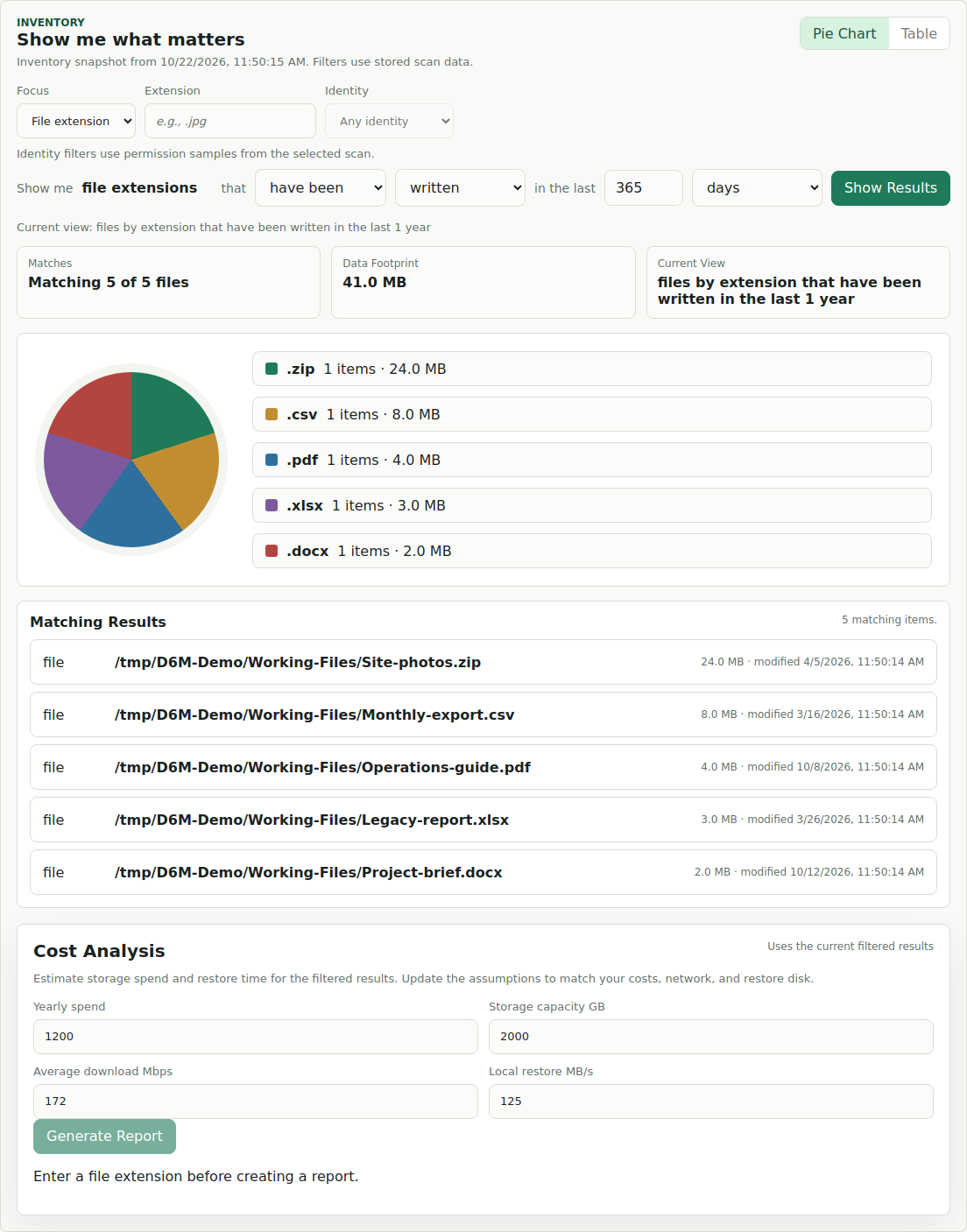
Current application interface with demonstration data. Community includes 25 GB per scan, with no time-limited trial.
When storage fills up or a system goes down, discovering what matters can cost valuable time. Build that understanding ahead of the incident: where files live, how much space they use, and what needs a closer review.
Explore file types, sizes, and created, modified or accessed dates. Use stored inventories to understand accumulated projects, exports and shared folders.
Use inventories and reports to help identify active working data, archive candidates and recovery priorities with the people who own the data.
Support backup scope and restore planning with better information. D6M informs those decisions; your backup, recovery testing and incident procedures remain essential.
Choose one Archive folder and one cleanup rule per source directory. Move files out of daily working folders, then use their time in Archive to decide when an explicit retention rule should delete them.
Watch selected folders for changes while D6M is running, with optional email notifications through a configured email profile.
Set your Archive folder, choose a source directory and an age since last modification, then preview matching files. Source rules include subfolders and cannot overlap.
Run a rule manually or enable daily cleanup through Windows Task Scheduler. The default is 2:00 AM local time, including while signed out. Each scheduled pass refreshes source folders before cleanup.
Review completed actions, errors and files deferred by the Community allowance. Archive records retain the original path, destination and entry date, so retention is based on time in Archive.
An automated action should leave something you can inspect. D6M records manual and scheduled file actions with their outcomes, helping you piece together what happened days or weeks later.
Review archive moves and deletions with recorded paths, timestamps, file sizes, and success or failure. Archive batches use dated, unique folders and avoid overwriting existing files.
Recorded actions distinguish manual and scheduled triggers, identify the execution account, and associate scheduled work with a run. Observed Windows session users provide context; they do not prove who initiated an action.
Use inventory exports and HTML reports to support conversations about storage, retention and recovery planning.
Action audit history is maintained. Archive tracking records support retention independently of that history and saved scans. This is operational evidence, not an immutable compliance log or a complete record of every file access.
Current application views using demonstration data. Select an image to view it at full size.
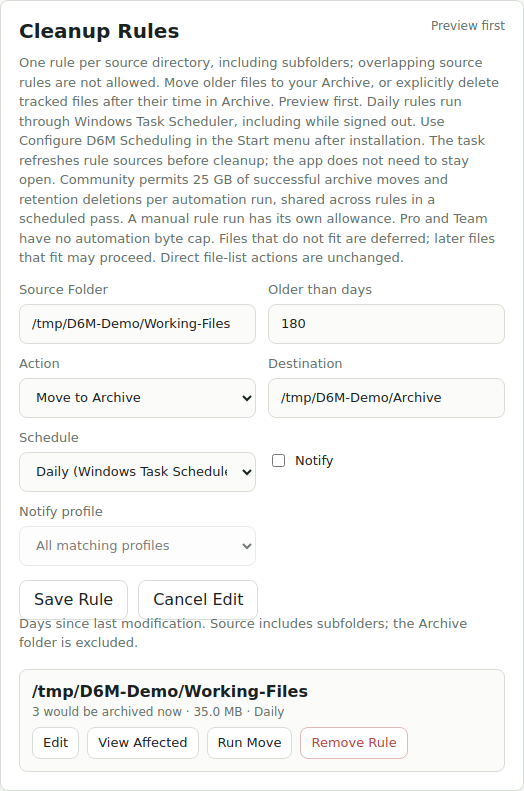
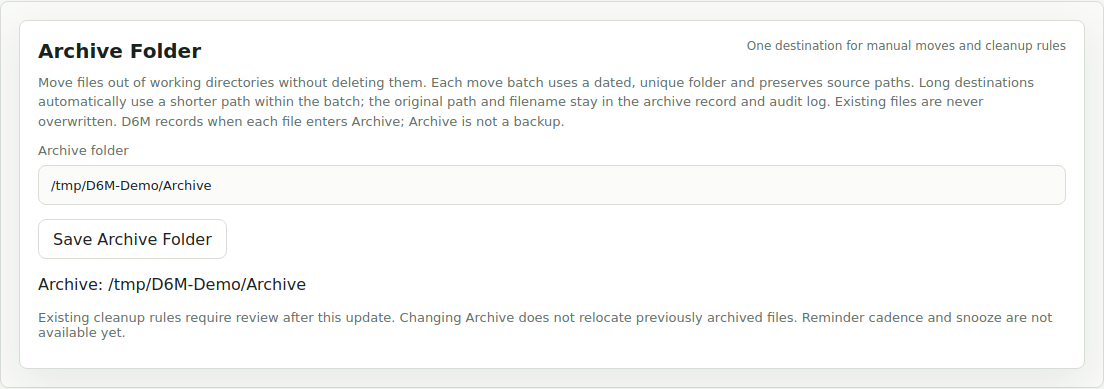
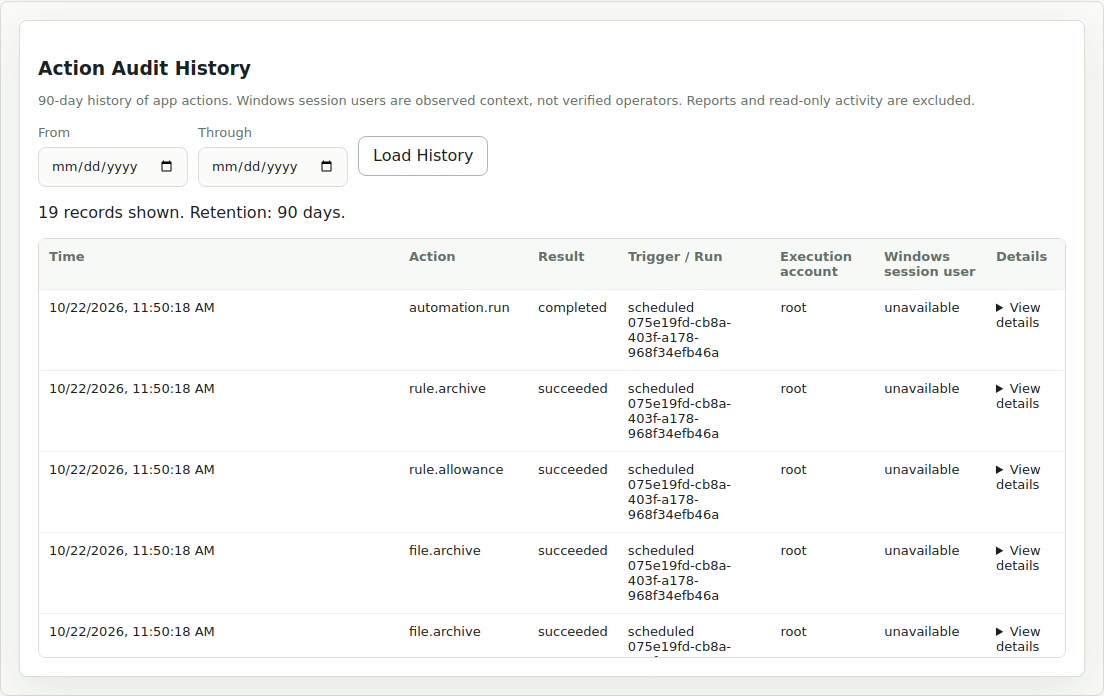
A useful Community edition without a trial countdown. Both editions include archive rules, scheduled cleanup, retention, and action history. Pro removes the Community byte caps, with one active instance per license.
Free
25 GB per scan · No time-limited trial
Includes 25 GB of successful file actions per automation run. Start with a focused folder scope and keep using it without a trial countdown.
Download Community$45 / month
or $500 / year · USD
One active instance. Scanning and automated file actions without the Community byte caps. Monthly and annual subscriptions renew until canceled.
Buy now ↗| Capability | Community | Pro |
|---|---|---|
| Scan allowance | 25 GB per scan | No Community size cap |
| Inventory filters & reports | Included for scans up to 25 GB | Included |
| Automation allowance | 25 GB of successful file actions per run* | No Community byte cap |
| Archive moves & retention rules | Included within the 25 GB automation allowance* | Included |
| Daily Windows scheduling | Included, also while signed out | Included, also while signed out |
| Action audit history | <||
| Duration | No expiration or trial countdown; Community limits continue to apply | Paid subscription; renews until canceled |
| License scope | Community edition | One active instance |
*One scheduled pass shares 25 GB across all due archive moves and retention deletions. Each explicit manual rule run has its own allowance. Whole files that do not fit are deferred; later files that fit may proceed. The allowance is independent of saved scan history. Archive storage size and retention duration are not capped. A scheduled source scan also honors the 25 GB Community scan limit.
Download the 64-bit Windows installer. Community is included; activate your Pro license in the same application.
Download D6M for Windows · 23.5 MBb0e5a4b60bdabc272adbb6e1439c6ecea74a3f3490dc3275ff2295a41d7c47894411af3b14018bf1fd095d12e981289bNode.js is bundled. Installation is per Windows user. Signed-out scheduling requires your Windows account password and permission to register the task; Windows stores the task credentials. Use SHA-256 to verify the downloaded file. MD5 is provided for compatibility.
The installer requires 64-bit Windows on an x64 computer. Installation and application data are per Windows user.
D6M uses Node.js, and the Windows installer bundles the runtime. You do not need to download or install Node.js separately.
Use a current web browser to open the local D6M interface. The Windows account running D6M needs permission to read scan folders and to move or delete files for cleanup. Allow disk space for inventory data and archived files.
Unattended cleanup uses Windows Task Scheduler. Running while signed out requires your Windows account password and permission to register the task. The computer must be on. Internet access is needed for Pro license activation and validation; optional email notifications require access to your configured mail server.
Small IT teams, MSPs and consultants who need practical visibility into file storage and repeatable archive workflows without taking on a large platform.
No. It helps you understand storage and plan what to protect and restore. Keep tested backups and recovery procedures in place.
Use Deactivate This Device in the app to release its activation, then activate your license on the other device. Deactivation does not cancel subscription billing; contact support to cancel your subscription.
D6M records when each successfully moved file enters Archive. A retention rule uses days since that entry, not the file’s original creation or modification date. Deleting a saved scan does not erase this tracking. Only tracked Archive files that still pass validation qualify for retention deletion. Changing the Archive folder does not move files already archived.
Deletion is permanent and bypasses the Recycle Bin. Move files to Archive when you want to get them out of working folders without deleting them. Archive is a file move, not a backup or restore system. Review rules and keep backups appropriate to your data.
The empty-folder hygiene template identifies folders confirmed to contain no entries. Review and delete selected empty folders; a zero-byte size alone does not mean a folder is empty. This is a review workflow, not an automatic recursive folder-deletion rule.
Choose Buy now, complete checkout, then use the license delivered by email to activate Pro in D6M. Each license covers one active instance.
Contact support@savaunt.com for cancellation assistance. Monthly and annual plans renew automatically until canceled.
Daily cleanup can run with the app closed and the user signed out through the configured Windows scheduled task. The computer must be on; missed starts run when Windows becomes available. Folder watchers still require the app to be running and must be set up for each session.
Duplicate suggestions based on names and sizes need review; they are not content verification. Sampled permission identities are not a complete access audit. Inventories reflect scan coverage and the permissions of the identity running D6M.
D6M runs locally and stores inventory and application state locally. Licensing and configured email notifications use external services. The installer is for 64-bit Windows and includes the runtime. File operations use the permissions of the Windows account running D6M. For scheduled network access, use UNC paths and ensure that account has access.
Questions about fit, licensing or getting started?